
Following last year’s overhaul of the product configuration, we have applied the same user-experience philosophy to our system Folders.
Historically, navigating folder properties meant clicking through an expanding wall of tabs. For seasoned Monad users, it was a breeze, but for those first discovering the flexiblity of our Folder approach, it was easy to get lost in the noise, especially when dealing with empty fields that weren’t relevant to what that specific folder was trying to achieve.
To solve this, we have consolidated our workflows, removed redundant tabs, and introduced a context-aware layout that surfaces exactly what you need based on the type of folder you are viewing.
Here is a comprehensive breakdown of what has changed, where your data has moved, and how the new configuration process works.
Starting at the Root: Setup Tree Context Menus
The improvements begin before you even open a folder interface. We have adjusted the right-click context options within the Setup tree to make creation and modification much more intuitive.
The Old Way
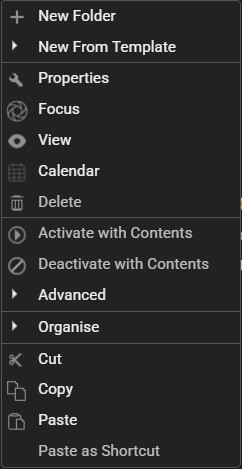
Users selected a generic + New Folder option or entered existing folders by clicking Properties.
The New Way
The menu has been streamlined. Properties is now simply Edit, which brings you directly into the workspace. More importantly, the generic new folder action has been replaced by a New sub-menu. This allows you to explicitly choose the exact entity type you want to build right from the tree:
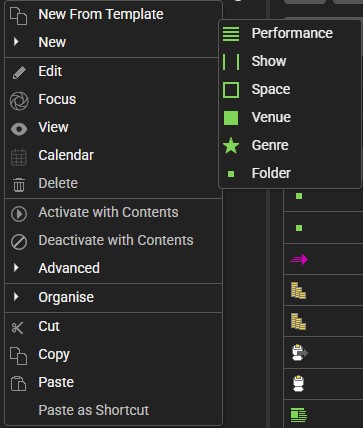
- Performance
- Show
- Space
- Venue
- Genre
- Folder
Folder Tab Mapping: Then vs. Now
We have dramatically reduced the tab footprint on the left-hand navigation pane. By grouping like-minded web copy fields together and removing dead space, nine legacy tabs have been intelligently combined into a tighter, more cohesive structure.
Here is exactly where your legacy settings have migrated to:
Properties ➔ Display
Key fields like Folder Name, Title, Short Description, and Image have migrated entirely to the Display area.
Display ➔ Advanced
Dropdowns for structural displays, content masks, and label toggles have been cleanly categorised under a dedicated “Display Overrides” section. The Preview display has been moved to a dedicated View action button next to Save and Exit, taking you directly to the page in your Sales Application (opens in a new browser tab).
Public Web Copy ➔ Display
The Public Web Copy and Public Footer text fields now live directly underneath your primary tab details for faster editing.
Extra Web Copy ➔ Display
Conditional content editors (On Sale Only, Not On Sale Only, and Staff Only) have moved to the bottom of the main display tab.
Data ➔ Properties
Data relationships have been prioritised and are now handled adaptively in Properties, while global data inheritance controls have moved to Advanced.
Filter ➔ Properties and Advanced
If a folder already contains Filter data, you’ll find it in the context-aware Properties tab, while if you want to create a new filter, you should start in the Advanced tab.
Status ➔ Availablity
Mirroring the change we made to the Product setup, core operational state parameters (Active, Hidden, Locked, and Archive), along with On Sale Schemes are now grouped under Availability.
URL ➔ URL
No change here – slugs, URL overrides, and navigation placement parameters remain in a dedicated, clean tab space.
Reference = References
Inbound links, shortcuts, internal selection rules, and external platform integration mappings remain intact with cleaner visual pacing.
Key System Improvements
1. The Unified Display Tab
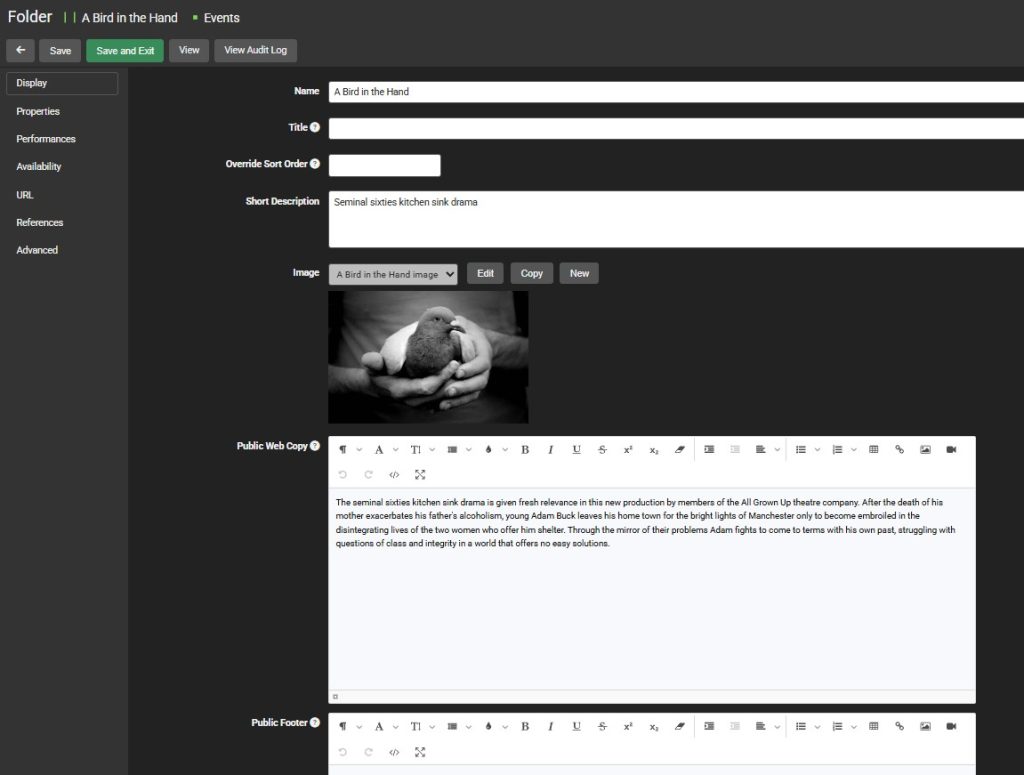
Instead of bouncing back and forth between three different tabs just to tweak how a folder looks to your customers, everything is now on a single page. The Display tab acts as your creative control room. It maps out your fields sequentially: Name, Title, Override Sort Order, Short Description, and Image, followed immediately by your Public Web Copy, Public Footer, and status-based content windows (On Sale Only, Not On Sale Only, and Staff Only).
2. Context-Driven Properties
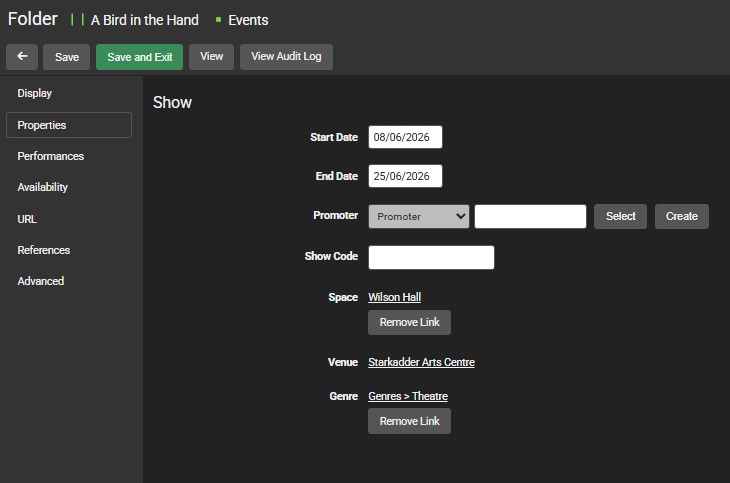
The Properties tab is no longer static. It is entirely context-based. The system analyses what your folder represents and dynamically changes its behaviour:
- If the folder represents a Show, it surfaces show data, promoter settings, finance codes, and parent genre / venue linkages are displayed here, alongside any custom form data that you regularly use.
- If it represents a single Performance, it adapts to prioritise the exact performance details required.
- If it acts as a space, venue, genre, or contains a filter, the page strips away irrelevant configurations to display only the most critical fields for that asset type.
3. Conditional Visibility for Performances
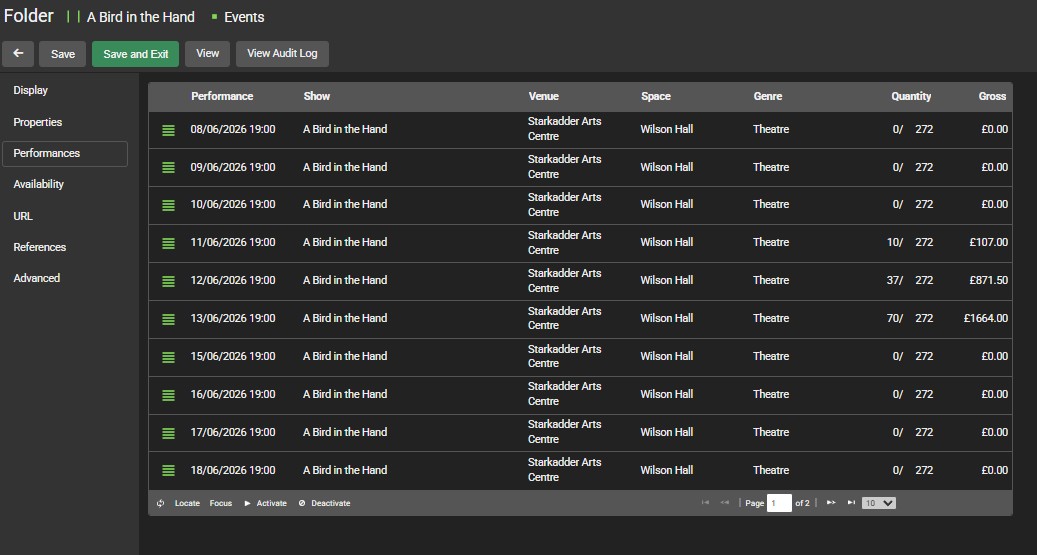
To protect against interface clutter, the Performances tab will only appear when you are actively working inside a Show folder that contains performance sub-folders. When active, it provides the same clean, tabular display from your Dashboard tracking performance dates, venues, quantities sold against capacity, and gross revenue figures at a glance.
4. Consolidated Availability Details
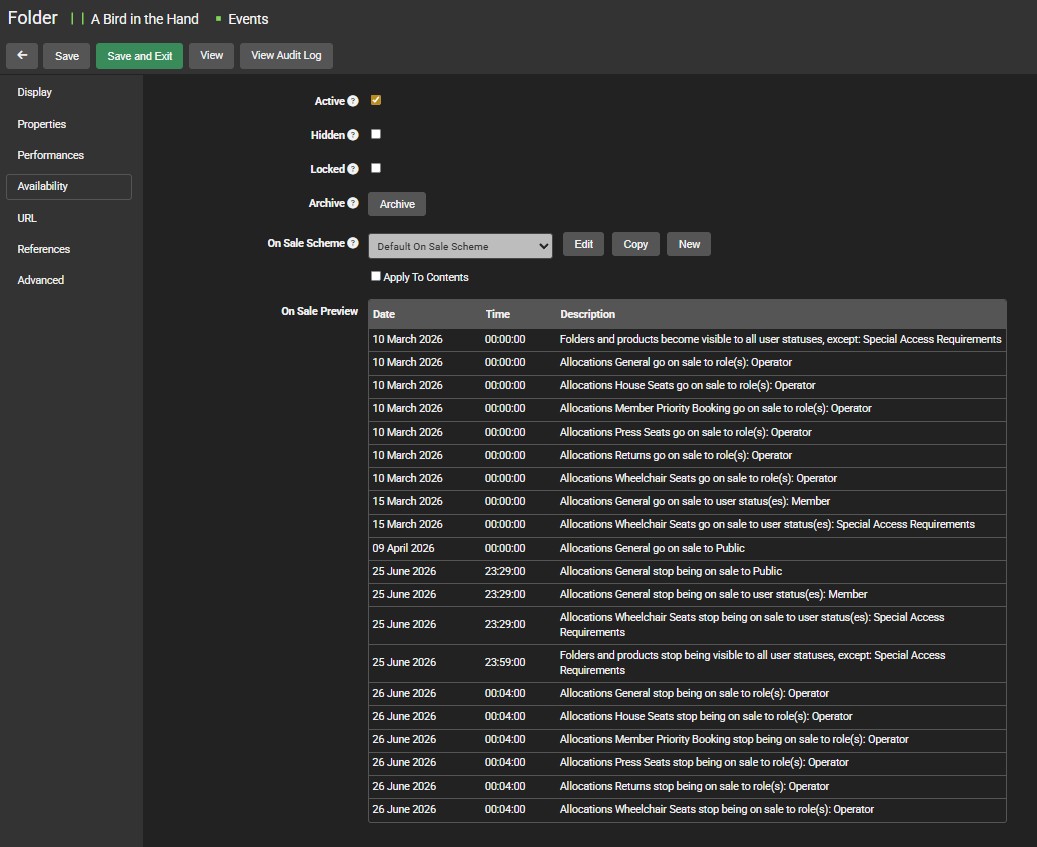
As previously, but now renamed to match the Product tabs, structural switches like Active, Hidden, and Locked sit in the Availability tab alongside your On Sale Scheme option and previews, so you can easily audit exactly when a folder becomes visible to specific user roles, member groups, or the general public.
5. Dedicated URL Management
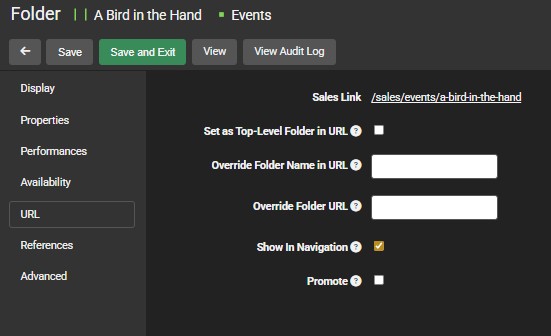
Your direct pathway configurations remain clean and focused in the URL tab. This pane provides clear management of your live Sales Link, alongside explicit toggle rules for setting the folder as a top-level entity, overriding the folder name or URL string, and deciding whether to show or promote the link in your front-facing Sales Application navigation.
6. Relational References Dashboard
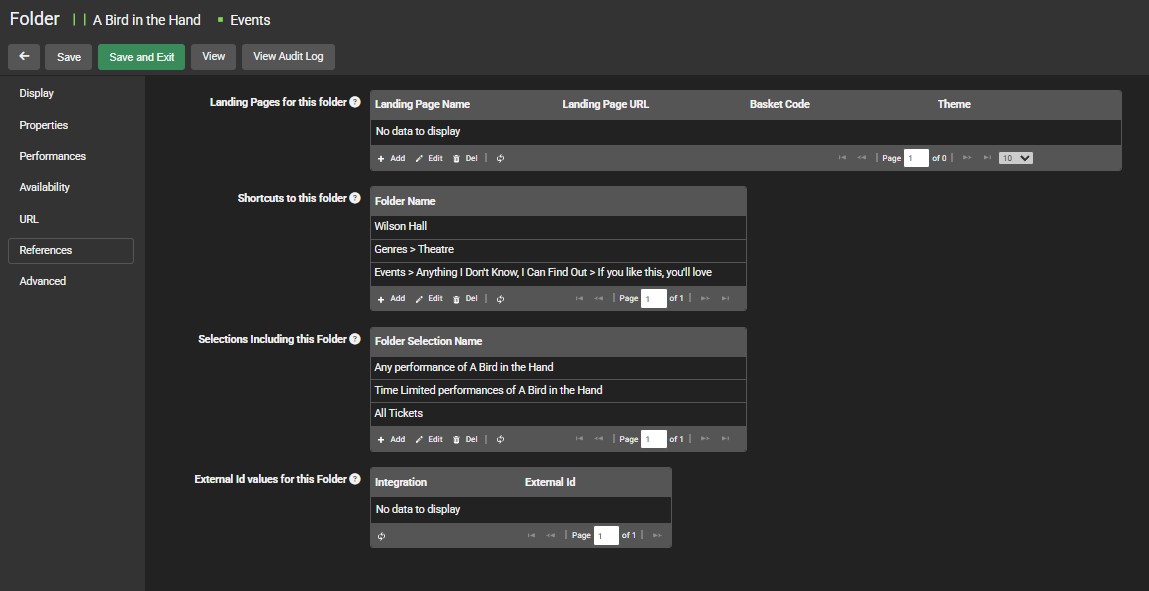
No real change here, the References tab is still where you can track how this folder interacts with the rest of your database architecture. Here, you can review any mapped Landing Pages, check Shortcuts linking to this folder (such as associated venues, spaces, or genres), track complex internal Selections that include this folder, and audit External ID values used for third-party software integrations like Veezi or Yesplan.
7. Core Properties Controls & Advanced Overrides
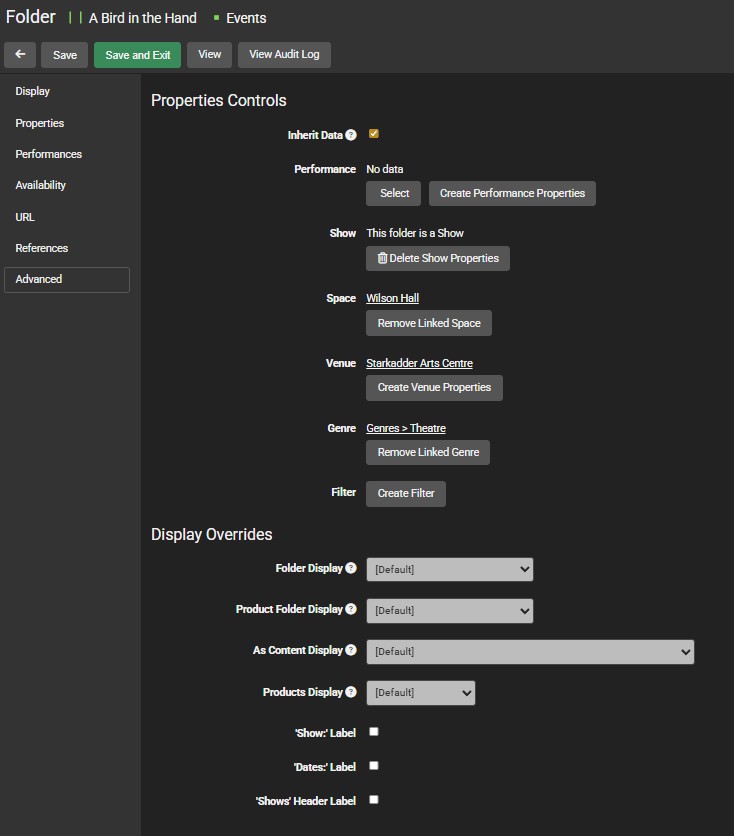
The Advanced tab houses fine-tuned back-end controls. Under Properties Controls, you can manage system-wide data inheritance or manually inject and remove structural relationships (such as explicitly creating or deleting custom performance, show, venue, space, or filter properties).
Below that, the Display Overrides engine lets you select folder masks, product layout styles, and customise front-end presentation labels (such as ‘Show:’, ‘Dates:’, or ‘Shows’ headers).
The Big Picture
By streamlining the setup tree context menus and introducing adaptive, context-driven workflows, our goal is to save you time and eliminate the cognitive drag of sorting through irrelevant settings. Whether you are spinning up a single performance or building a complex multi-venue show, your interface now works with you, displaying only what matters for the task at hand.
Need a Hand?
As these interface updates roll out to your database, our team is here to help you get well-acquainted with the faster layouts. It is worth noting that while the look has changed, utilising Templates, alongside our standard Copy and Paste features, remains the absolute best and most efficient process for your day-to-day folder setup.
If you have any questions about where specific custom components have relocated, or if you would like some guidance on setting up time-saving templates for your upcoming shows, please reach out to the support team at support@monadticketing.co.uk.